

This post was originally published on this site.
Agencies move quickly. With constant new client builds, redesigns, plugin audits, and last-minute fixes, everything relies on a workflow that’s stable, fast, and consistent across the team.
For many WordPress agencies, the challenge isn’t shipping great work; it’s getting every team member working the same way, on the same stack, without losing time to process.
WordPress Studio was created to remove those slowdowns so agencies can spend more time building and less time wrestling with overhead — giving every developer a consistent workflow and helping agencies deliver higher-quality work in less time.
Watch the complete walkthrough of these agency workflows below, and keep reading to see how each fits into modern agency development with Studio:
Spin up identical development environments for all
Every agency knows the pain of onboarding a new developer, configuring a stack from scratch, or replicating a teammate’s environment.
You can start a clean local site, restore from a backup, or use a Blueprint, a reusable site recipe that defines specs such as which themes and plugins to install, which PHP version to use, and which content or settings to apply.
Using Blueprints means every project starts from the same proven foundation, not from a blank slate, which, for agencies, results in faster onboarding and better handoffs between team members, turning hours of setup work into seconds of standardized automation.
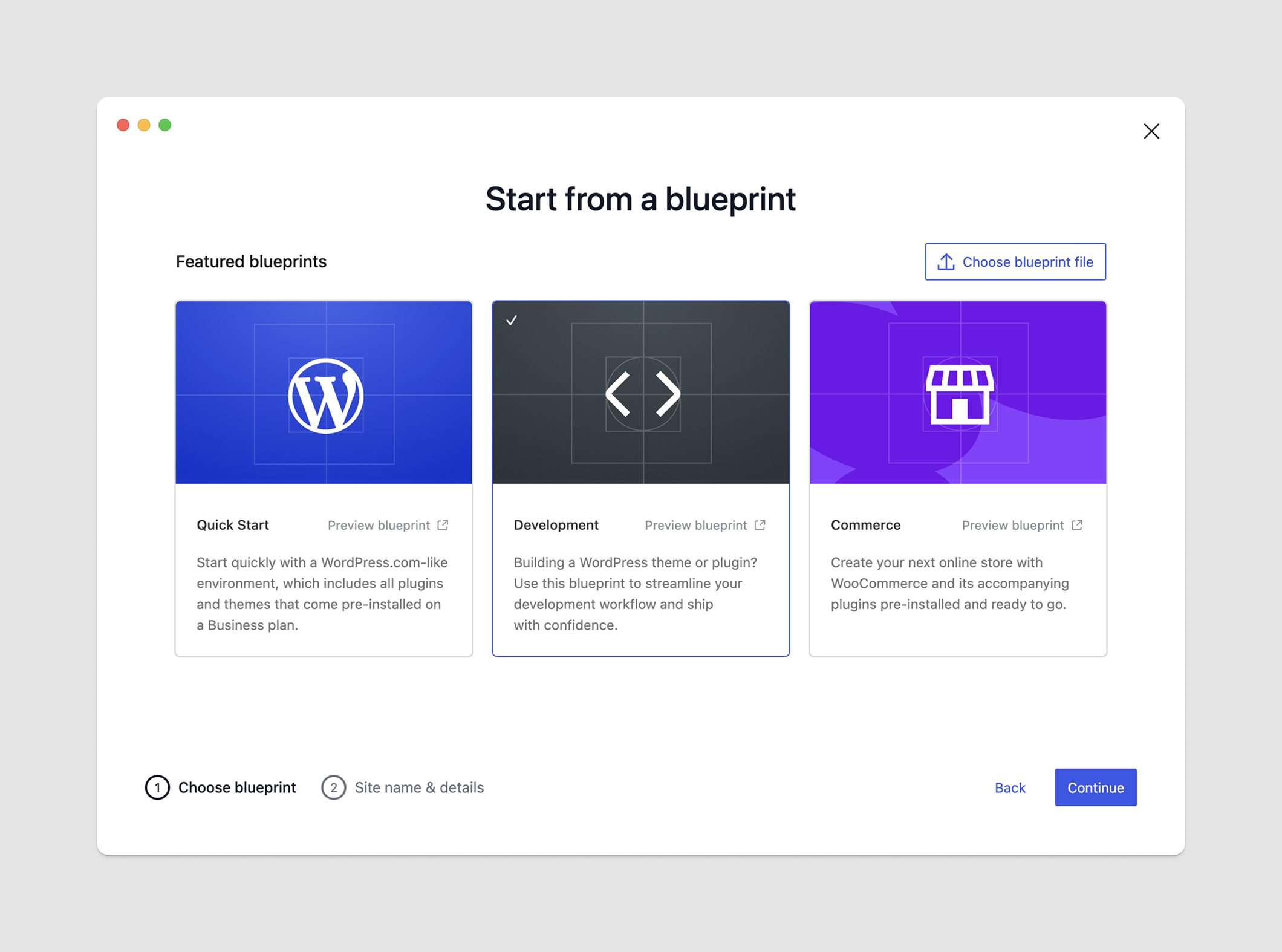
Once you start a Studio site with a Blueprint, you and your team can build from your desired specs rather than a blank slate. This alone compresses hours of administrative work into seconds.
To start a site with Blueprints in Studio:
- Click the “Add site” button.
- Select “Start from a Blueprint,” and you will see a gallery of featured Blueprints and an option to choose your own custom Blueprint file.
- Select a featured Blueprint that fits your needs or “Choose Blueprint file” and select the JSON file from your computer.
- Click Continue.
- On the setup screen, give your site a name. You can open “Advanced settings” for more options.
- Click “Add site.“
Behind the scenes, Studio will build the site from whichever Blueprint you selected or added. To keep your team aligned across projects, check out our guide to creating custom Blueprints.
Share “always-online” snapshots for faster team and client approvals
Once you’ve created a site in Studio, you can keep your team and clients in the loop with reliable, shareable, and fully online preview sites.
Preview sites allow you to share snapshots of your local builds publicly. They’re built on a temporary domain powered by WordPress.com, and each Studio user can spin up 10 at a time.
The beauty of preview sites is that they’re fully hosted sites — they’re not tunnels that require you to be online for your team and clients to see them. Not only that, you can share login credentials with your team or clients so they can explore the backend as well.
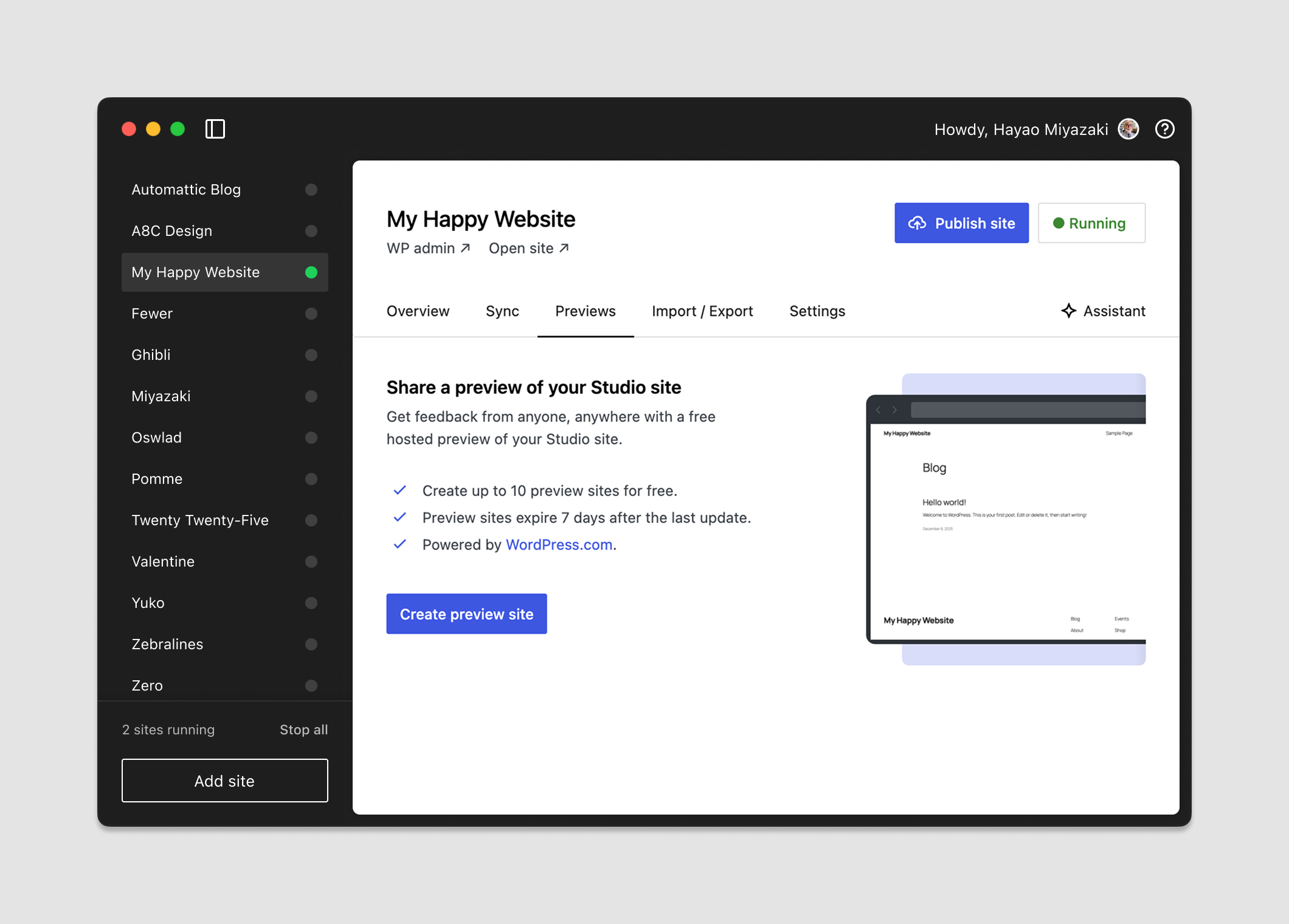
Preview sites are temporary and automatically deleted after seven days. This feature ensures that preview environments are used for short-term feedback and review purposes.
To send a preview site to your team or clients:
- Select the local site within the Studio.
- Click on the Previews tab.
- Log in to WordPress.com if you haven’t already.
- Click on the “Create preview site” button.
- Once the preview site is created, copy your preview site domain and share. You can provide login credentials to folks by clicking the Settings tab in the Studio and copying the username and password under WP Admin.
While preview sites are intended for sharing with clients and gathering early feedback for up to seven days, a hosting plan is required to make your site permanently accessible. Use the Studio Sync or Import/Export features to connect your Studio site to a hosting plan.
Stay in sync with staging and prod
When it’s time to go live, Studio Sync helps you move updates with confidence, without wrestling with exports, plugins, or fragile workflows.
Studio Sync allows you to synchronize a WordPress.com or Pressable-hosted staging or production site with your Studio sites in either direction.
Not only that, sync functionality is selective, meaning you have precise control over what gets transferred between Studio and any connected production or staging sites. No more accidentally overwriting the plugins already running smoothly in production or having your local test content affect the live database.
To sync with staging or production:
- Select the site you wish to synchronize from the Studio sidebar.
- Open the Sync tab.
- Locate the WordPress.com or Pressable-connected site or connect to another one. Making this connection won’t transfer any data; it simply tells Studio which hosted site you want to pull from or push to.
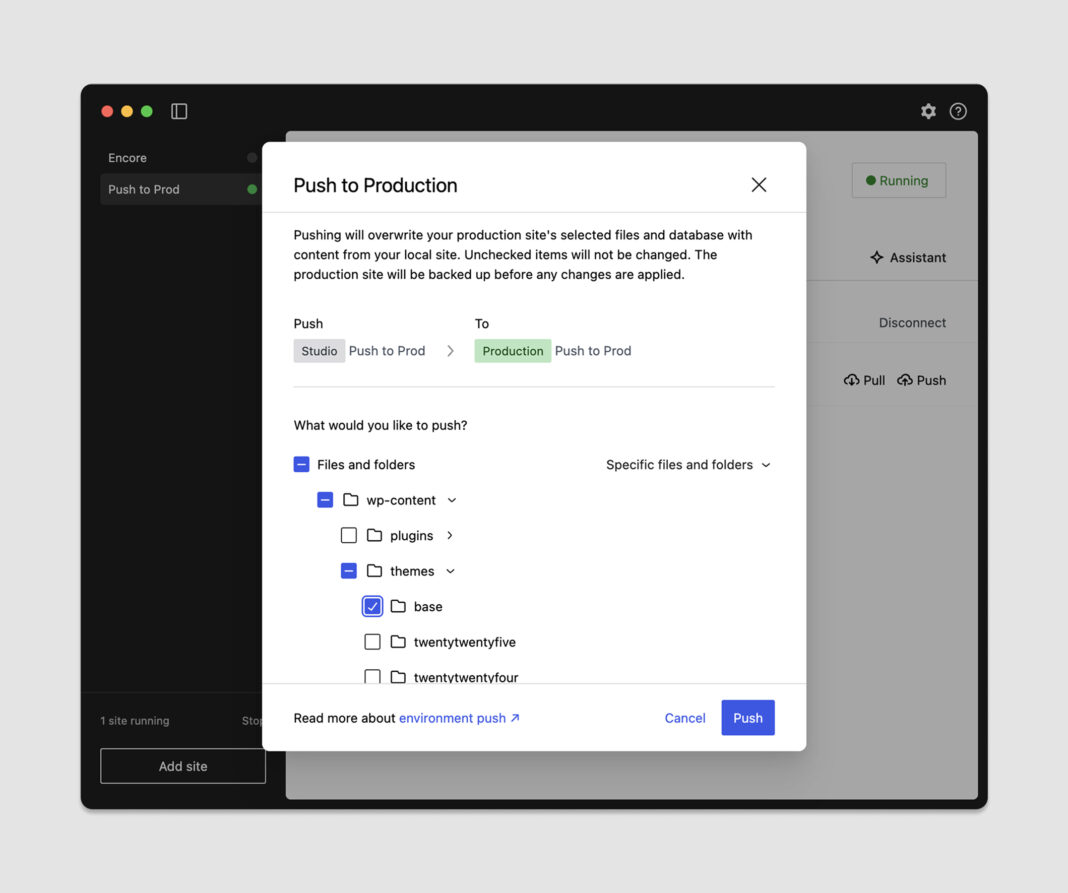
- Click Pull or Push to open the sync modal.
- Choose to sync “All files and folders” or “Specific files and folders.”
- Select the elements you want to synchronize from or to your production or staging environment. You can expand the plugins, themes, and uploads folders to select individual items.
- Decide whether to include the Database in the sync.
- Click the Pull or Push button.
Sync is an excellent accompaniment to preview sites for agencies. You can pull a live site into Studio, use preview sites to demo your local work for others, and once you’re happy, you can push the changes to staging or production.
There are some requirements for Studio Sync, so be sure to check out the full documentation to get the most out of this feature.
Set your preferences to get into the work faster
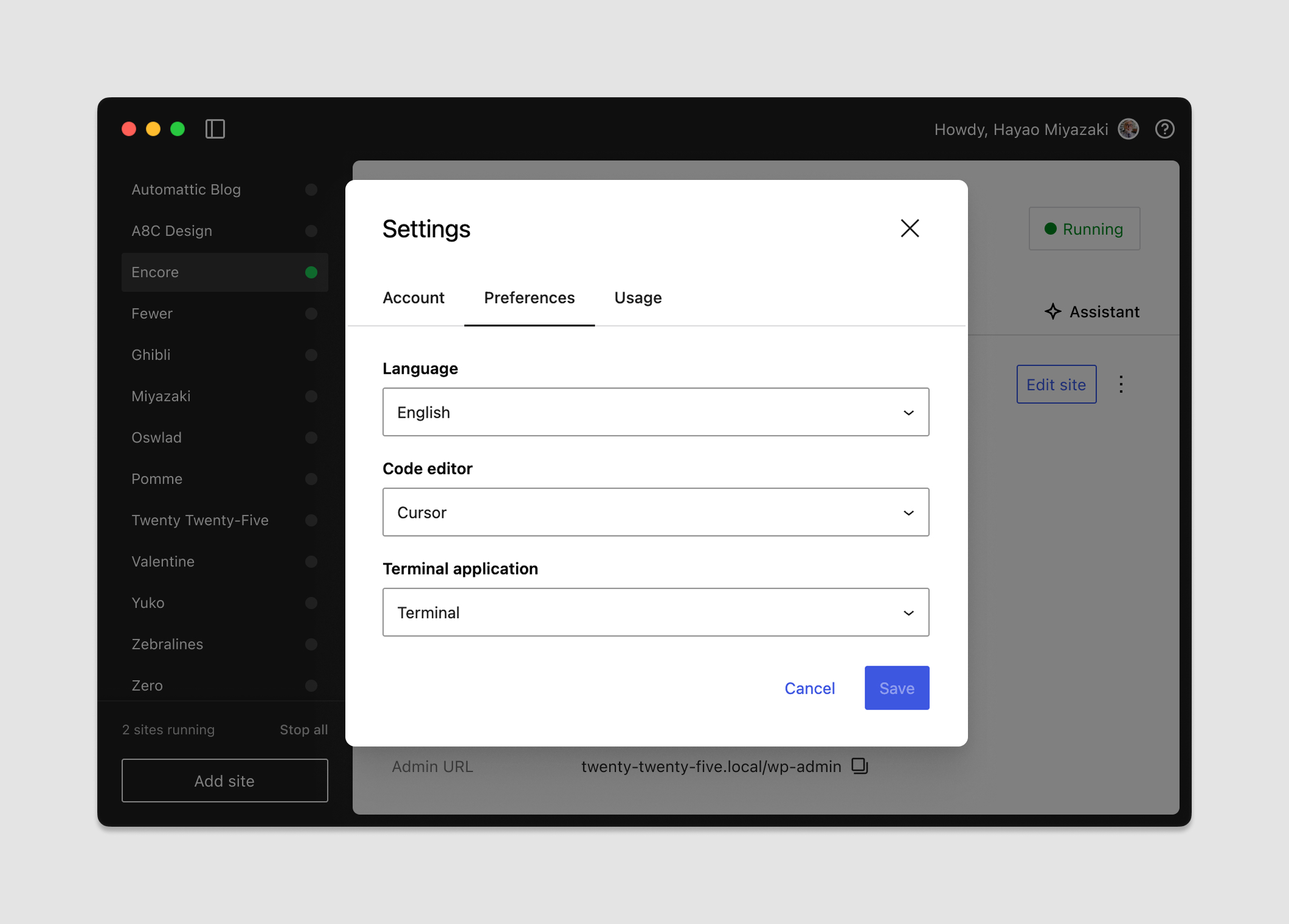
A “small but big” feature in Studio is Preferences, allowing you to quickly work on Studio site files in the editor and terminal application you rely on every day.
Once you have a Studio site running, you’ll notice some buttons under the “Open in…” heading on the Overview tab.
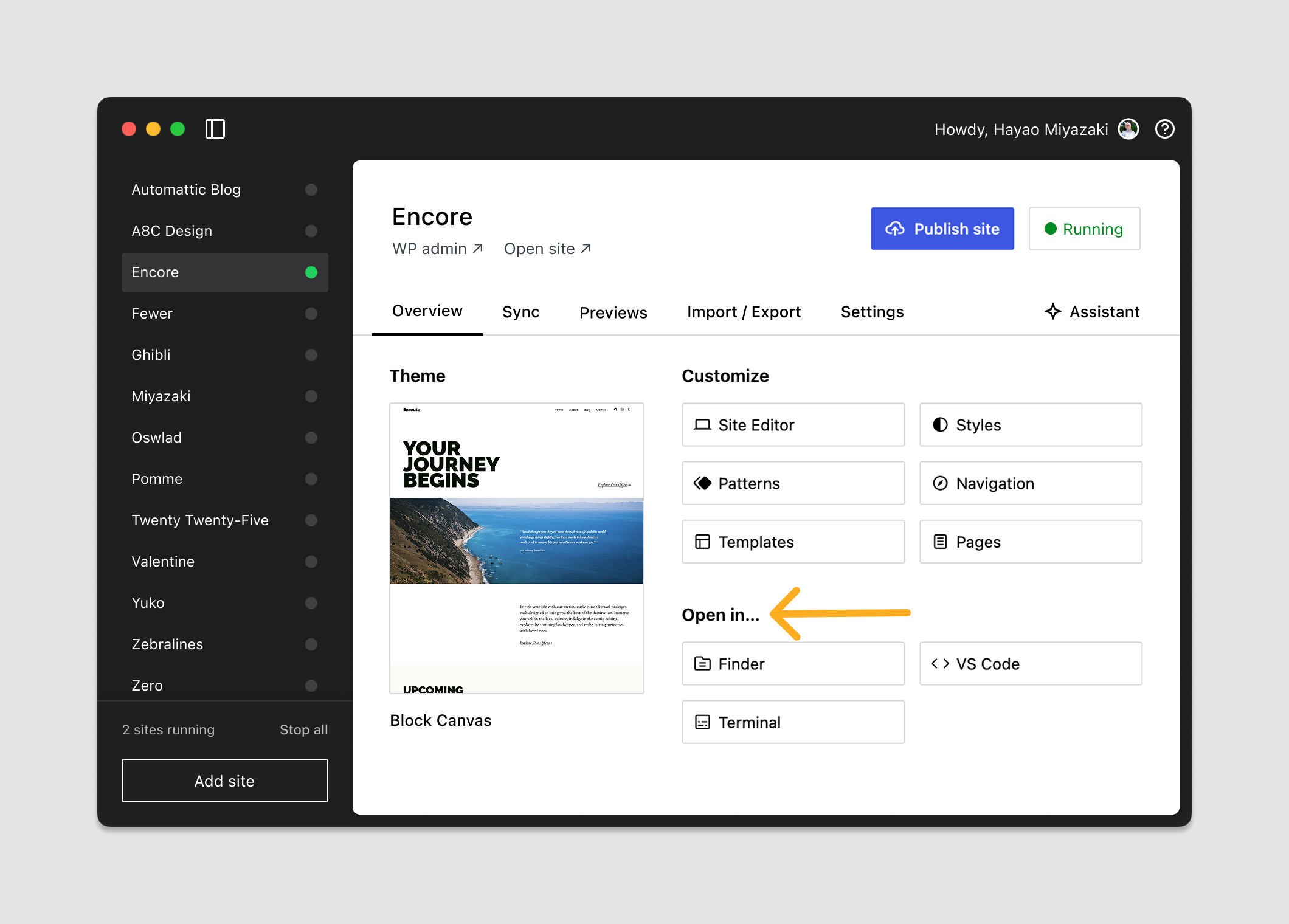
You can specify which code editor and terminal app you use in your everyday workflows in the Studio preferences menu — click on the user icon in the top right corner to open “User Settings,” then click the Preference tab and make your selections.
Work on development sites locally
If you’re part of our free agency program, Automattic for Agencies, you have access to five free development sites.
These are fully-hosted WordPress.com websites that act as staging sites, and if you want to work on them locally in a safe, isolated environment, you can use Studio’s sync feature.
To spin up a development site and sync it to and from Studio:
- Log into your Automattic for Agencies account.
- Click the Marketplace button from the sidebar, then click Hosting and Standard.
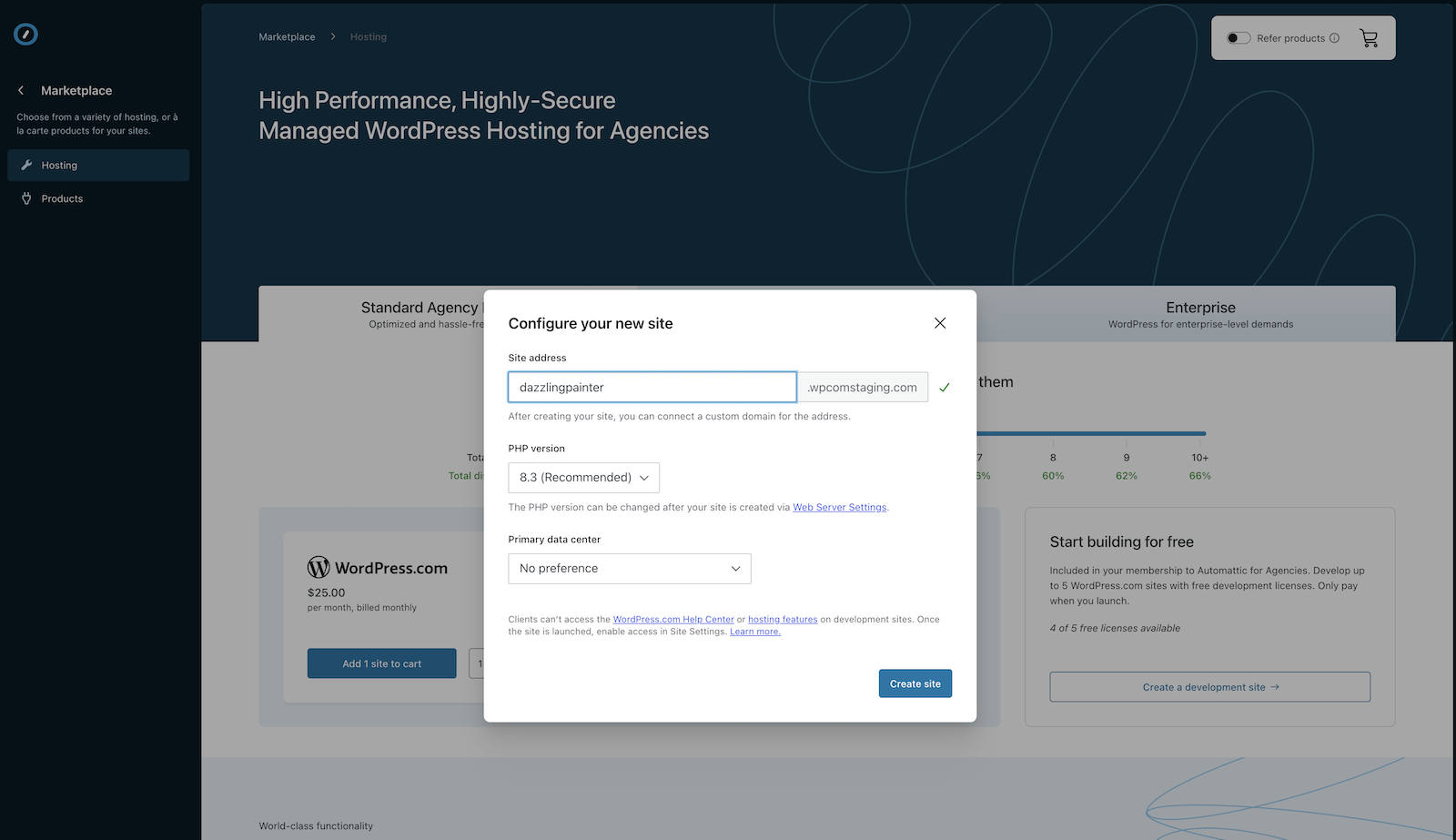
- Scroll down to find the Start building for free section, and click on the “Create a development site →” button.
- Specify your site address, PHP version, and primary data center, and click “Create site.” This will be a fully-hosted development site on WordPress.com.
Once the site is created, it can be synced into Studio by following the syncing instructions above.
It’s a workflow that keeps everything aligned — your local builds, your development site, and your final production push — without the tool mismatch, manual migration steps, or “which version is this?” confusion agencies often battle.
This means fewer unknowns and faster turnaround times across your entire portfolio.
Streamline your agency’s workflows with Studio
When your team moves fast, every slowdown compounds. The tools you use can create friction or remove it — and Studio is built to remove it.
From spinning up consistent environments to sharing always-on previews and safely syncing with staging and production, it gives agencies a clearer path from first draft to final delivery.
It cuts through the messy parts of WordPress development so your team can stay focused on the work clients actually see.
Plus, the WordPress.com team supporting Studio ships updates fast and often, so you can always expect new features and performance enhancements to streamline your workflows further. And if you have any feature requests for the team, we encourage you to open an issue on GitHub.
Try WordPress Studio for free and give your team a faster, more reliable way to build and ship on WordPress.